FSETools Documentation
Introduction
FSETools compiles several Fire Safety Engineering tools. Mostly based on contemporary guidance documents (e.g. ADB / BS 9999 / BS 7974). Users are expected to have a thorough understanding of the methodologies behind these tools.
Main Window Layout
A good figure worth thousands words.

Fig. 1 A sketch of the main window layout of FSETools
Component |
Description |
|---|---|
Frame |
The topmost bar of the main window housing title and min/max/exit buttons. |
Menu Bar |
A horizontally oriented menu bar housing all options in form of dropdown menus. |
Side Menu |
A vertically oriented tree menu housing shortcut for activating useful tools (also see Calculation Node Layout). |
Viewport |
A viewport area allows the users to see calculation inputs and outputs etc. Can be toggled visible/hidden by View -> Side Menu. |
Console |
A command-line style area to display various information, e.g. calculation errors/warnings etc. Can be toggled visible/hidden by View -> Console. |
Status Bar |
The bottom bar of the main window. The last line in the Console will be displayed on this bar for 5 seconds. Version info, viewport location and zoom are displayed on the right end (click these text to reveal extra info/options). |
Calculation Node Layout
Most of the calculation modules hosted within the Side Menu (see Fig. 1) share a common layout as per Fig. 2 for consistency.

Fig. 2 A sketch of Calculation Node common layout
Keyboard Shortcuts
Shortcut |
Effect |
|---|---|
Ctrl + A |
Select all items |
Ctrl + C |
Copy selected item(s) |
Ctrl + V |
Paste copied item(s) |
Del |
Delete selected item(s) |
Ctrl + O |
Open a saved file |
Ctrl + S |
Save current scene to a file |
Ctrl + Shift + S |
To save current scene to a new file |
R |
To create a Room node. Requires B101 License. |
D |
To create a Door node. Requires B101 License. |
E |
To create an Exit node. Requires B101 License. |
S |
To create a Stair node. Requires B101 License. |
X |
To create a X node. Requires B101 License. |
Ctrl + Shift + R |
To toggle b101 visualisation. Requires B101 License. |
Ctrl + R |
To update b101 flow (also switch on visualisation). Requires B101 License. |
Mouse Action and Effect
Note
Most items in Table 3 works only when Viewport is focused. Click any blank area in Viewport to gain focus.
Action |
Effect |
|---|---|
Left button press |
To select a single item |
Left button hold + move |
To select multiple items |
Right button press |
To call context menu depending upon selection |
Middle button hold + move |
Move viewport |
B101 License
B101 is still a work in progress and therefore supplied with limited access to testers. Contact Ian if you are interested in testing B101 (a 30 minutes training is required for new starters). Upon agreement, follow the three simple steps below to obtain and install a B101 license file:
Click Help -> About to get the specification data displayed in Console, formatted as per below.
About FSETools:
FSETools 0.1.1 202112312253
Expires in 364 day(s), 2 hour(s) and 9 minute(s)
UID 00000000-0000-0000-0000-XXXXXXXXXXXX
Root C:\Program Files (x86)\FSETOOLSGUI
Send this information (particularly version and UID) to Ian to request a licence file (named
b101.fselicand do not change this file name).First save the license file
b101.fselicto an accessible folder (e.g., Desktop or Downloads). Then move the file to the root folder (shown in Step 1).
Note
Step 3 requires administrator access.
Upon completion of the steps above, press Ctrl+Shift+Alt+B to show/activate B101 toolbar (press again to ] hide/deactivate). All B101 features will be accessible when the toolbar is visible (as well as the shortcuts in Table 2).
Note
A license file only works for a specific version on a specific machine, meaning that upgrading FSETools or running the software on a different machine will require a new license file.

Installation
Download and execute FSETOOLSGUI installer.
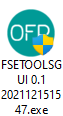
You may see a pop-up dialog window asking to uninstall previous versions (if exist). After pressed the Yes button, wait 10 seconds before move onto the next step for the uninstallation to complete.

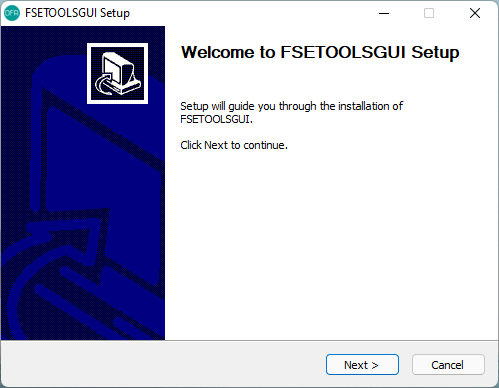
Click Next to start installation then wait for the installation progress to complete.
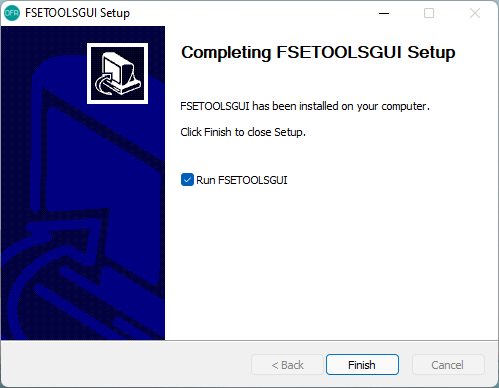
Installation complete, click Finish to close the installer.
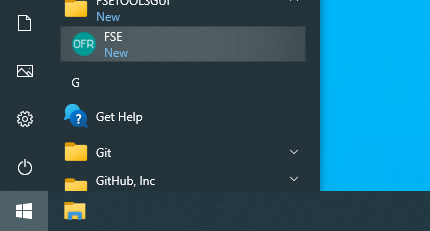
The application should be able to run.
Release
Release Note
This file documents the release history of fsetoolsgui.
Version History
XX/XX/2022 VERSION X.X.X:
For future development.
[ ] [New]
EN1993ExtColWidgetBS EN 1993-1-2 external column temperature.[ ] [New]
EN1993ExtBeamWidgetBS EN 1993-1-2 external beam temperature.[ ] [New]
SafirStruct3DPostWidgetSAFIR Struct3d Post Processor Strain, converted from previous version.[ ] [New] Redo and Undo.
[ ] [Optim.] Migrate to Qt6 (from Qt5).
[ ] [Misc.] Monetization.
XX/01/2022 VERSION 0.1.2:
[x] [Fix]
DistSelectorWidgetfixed plot does not show up in 0.1.1.[x] [Optim.] New custom plot module based on
Qt.QtChartsreplacingpyqtgraph.
02/01/2022 VERSION 0.1.1:
[x] [New] Integrated B101 module for exit capacity calculation and visualisation.
[x] [New] NodeList B101 Node Table to enhance efficiency editing/reviewing B101 nodes and their values.
[x] Dedicated
QDialogUI.[x] Update the item in the Table upon changes made in the View/Scene.
[x] Update the item in the View/Scene upon changes made in the Table.
[x] Centre item in the View upon select in the Table.
[x] Remove items in the View/Scene also remove in the Table.
[x] [New]
PRAPostFireWidgetmigrated from previous version.[x] [Fix] Fixed B101 nodes horizontal and vertical alignment issues due to double counting item geometry.
16/12/2021 VERSION 0.1:
[x] [New] Refreshed user interface.
[x] [New] Added save and load feature.
[x] [New]
PRAPostFireWidgetmigrated from previous version.[x] [New]
BR187PerpendicularRoofWidgetmigrated from previous version.[x] [New]
StefanBoltzmannLawWidget.[x] [New]
ImageWidget.[x] [New]
FDSMeshMPIOptimWidget.[x] [New]
ExternalModuleWidget.[x] [New]
BR187SummaryWidget.[x] [New]
BR187PerpendicularWallWidget.[x] [New]
FSEKitchenHobWidget.[x] [New] macOS support.
04/09/2021 VERSION: 0.0.9
This is an accumulated node since 0.0.4.
[x] [New] FDS mesh mpi optimiser.
[x] [New] Probability distribution.
[x] [New]
ISO834FireWidgetISO 834 fire.[x] [New]
PRAPreWidgetSFEPRAPY pre-processor.[x] [New]
PRAProcWidgetSFEPRAPY processor.[x] [New]
PRAPostWidgetSFEPRAPY post-processor.[x] [Fix]
PD7974HDActWidgetPD 7974 heat detector device activation time, fixed incorrect image being displayed.
16/06/2020 VERSION: 0.0.4
[x] [New] 0103 BS 9999 merging flow at final exit level.
[x] [New] 0104 ADB merging flow at final exit level.
[x] [New] 0407 TRA cuboid enclosure model.
[x] [New] 0611 EC 1991-1-2 parametric fire generator.
[x] [Fix] Fixed an issue where the update download url label no responses when clicked.
[x] [Improve] 0401, 0402, 0403 & 0404: Added critical heat flux input parameter.
[x] [Improve] Installer: Interface optimisation.
14/02/2020 VERSION: 0.0.1
[x] 0101 ADB data sheet.
[x] 0102 BS 9999 data sheet.
[x] 0111 PD 7974 heat detector activation time.
[x] 0401 BR 187 parallel simple.
[x] 0402 BR 187 perpendicular simple.
[x] 0403 BR 187 parallel complex.
[x] 0404 BR 187 perpendicular complex.
[x] 0405 general thermal radiation analysis.
[x] Calculation checked.
[x] 0601 OFR naming.
[x] 0602 PD 7974 flame height.
[x] Calculation checked.
[x] 0111 implemented display numerical results in the table.
[x] 0111 implemented graphical output.
[x] Converted all independent modules into QMainWindow objects, i.e. to have a status bar.
[x] Installer for MS Windows.
[x] All output files are set to read only.
[x] Shortcut for all module GUI windows press ESC to close.
[x] Implemented error handling.
[x] Implemented check GUI tip texts.
Checklist before release
Update version number
fsetoolsGUI.project_info.__version__.Build executable using pyinstaller (make sure unnecessary files are removed).
Build NSIS installer.
Install and test the program:
The previous version uninstalls successfully.
Test b101.fselic.
Load
v_fsetoolsGUI\calc\all.fsewithout issues.Load
v_fsetoolsGUI\b101\std.fseand run Flow without issues.Save without issues.
Update remote update file as necessary.
Update doc as necessary.
Commit and pull to master.